NFC Google Review Stickers: How They Work and How to Set One Up
What an NFC Google review sticker actually is, how the tap-to-review flow works, and a step-by-step setup you can finish in ten minutes.
By Tapora Team
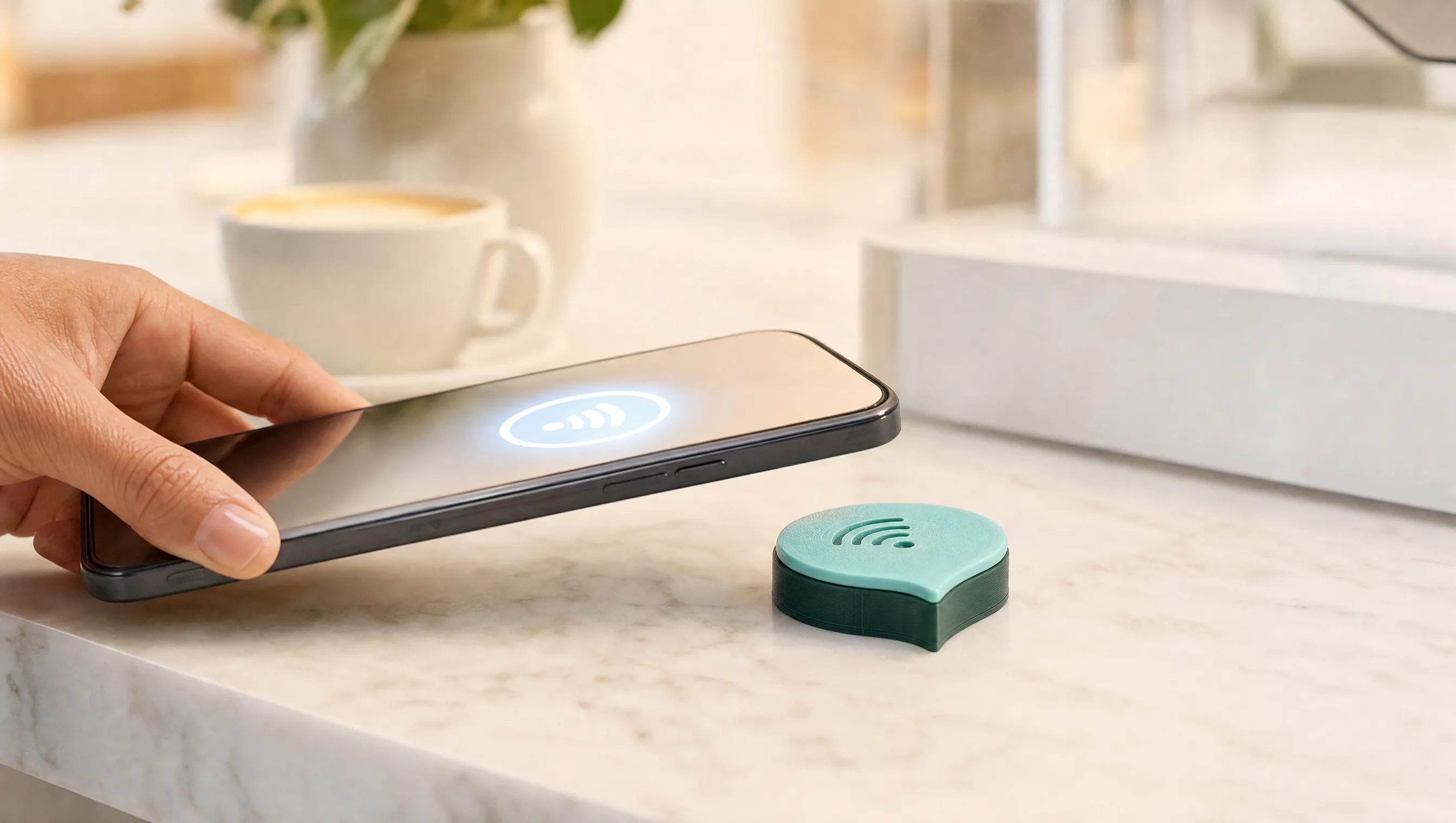
An NFC Google review sticker is a small tag that opens your Google review page the instant a customer taps their phone on it. No app, no QR to line up, no searching for your business name. If you have seen a badge on a cafe counter that says tap for reviews, this is what is behind it. Here is how it works, and how to set one up.
What is an NFC Google review sticker?
NFC stands for near field communication, the same short-range wireless that powers contactless payments. Inside the sticker or badge is a tiny chip holding a web link. Hold a phone close and the link opens on its own. Point that link at your Google review page and a tap becomes a review in seconds. With Tapora, the link is not burned in forever: you set where it points and change it whenever you like from your dashboard, so one badge can outlast a rebrand, a new location, or a change of plan.
What you'll need
- A Tapora badge or keychain (every unit ships with an NFC chip and a printed QR code)
- Your Google Business Profile
- Two minutes to grab your review link
- A phone to test it
Step 1 - Get your Google review link
Sign in to your Google Business Profile, open the section for asking customers for reviews, and copy the short review link Google gives you. This link drops customers straight onto the star-rating screen for your business, which is exactly where you want them.
Step 2 - Point your badge at that link
In your Tapora dashboard, set the badge to redirect to the review link you just copied. That is the whole configuration. Because the destination lives in your dashboard rather than on the chip, you can update it later without touching the badge, so a seasonal campaign or a second location is a two-second change, not a reprint.
Step 3 - Place it where people will tap
Placement decides how many taps you get. Put it in the natural pause where a customer is waiting, usually right where they pay.
- On the table, near where the bill is dropped
- At the till or pay point, facing the customer
- On the counter of a takeaway or coffee bar
- Near the exit, at the please tap on your way out moment
Step 4 - Test it
Tap the badge with your own phone. Your Google review page should open within a second or two. Try it on both an iPhone and an Android phone if you can, so you know it works for everyone who walks in.
The QR backup
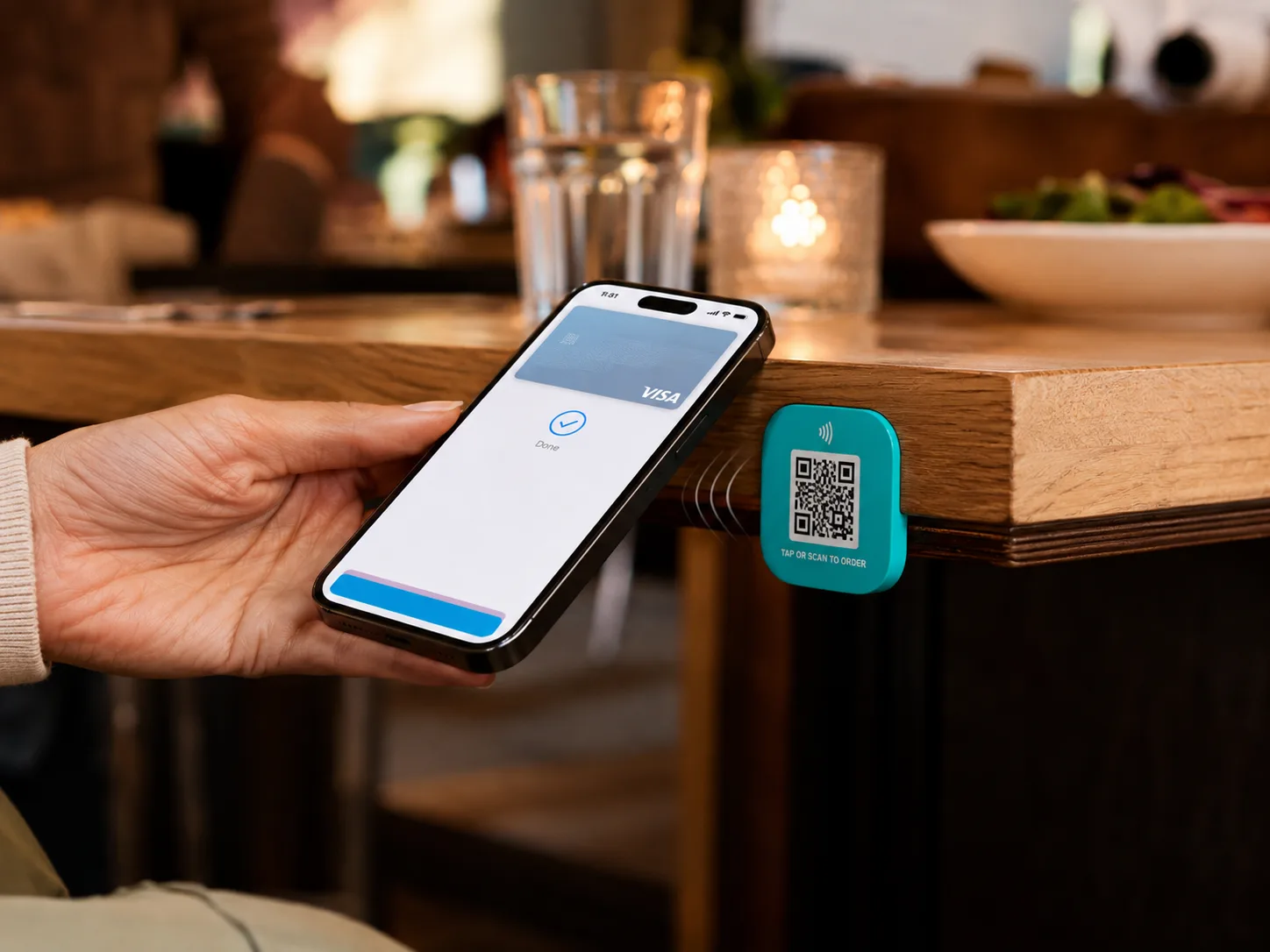
Every Tapora badge and keychain ships with a printed QR code alongside the NFC chip. Older phones, locked-down work phones, or a guest who prefers the camera can scan instead of tap, and they land on the exact same review page. You are never relying on a single method.
Wrapping up
That is the entire setup: grab your review link, point your badge at it, place it where people pay, and test. For the strategy side of collecting reviews, read how restaurants get more Google reviews without awkwardly asking, or see the restaurant reviews page.
Continue reading
NFC Guides
How Restaurants Get More Google Reviews Without Awkwardly Asking
The quiet system behind restaurants that stack up 5-star Google reviews: make leaving one a single tap, at the exact moment guests are happiest.
NFC Guides
Stop Answering the Same Airbnb Guest Questions: Put Your House Manual on a Tap
WiFi codes, appliance quirks, checkout steps. Give guests a house manual they reach with one tap, and stop answering the same questions at 11pm.
Guides
One Link, Many Destinations: Using Redirect Kinds to Run Campaigns
The smartest thing you can do with an NFC tag is not hardcode the destination. Tapora links don't point to your final URL — they point to a short URL you control, which means the same physical tag can route to a menu in January, a Valentine's promo in February, and a Google re…